Windows 95 Throwback
Relive the nostalgia of classic computing with this icon pack inspired by Windows 95. These icons feature the chunky, pixelated style of the mid-90s, perfect for adding a retro touch to modern interfaces or OS customizations.
Windows 95 Throwback
Welcome to the Windows 95 Throwback Icon Pack! This pack brings the charm of vintage computing to your design projects. Use these icons to evoke a sense of nostalgia or create unique, eye-catching interfaces.
Icons in this pack
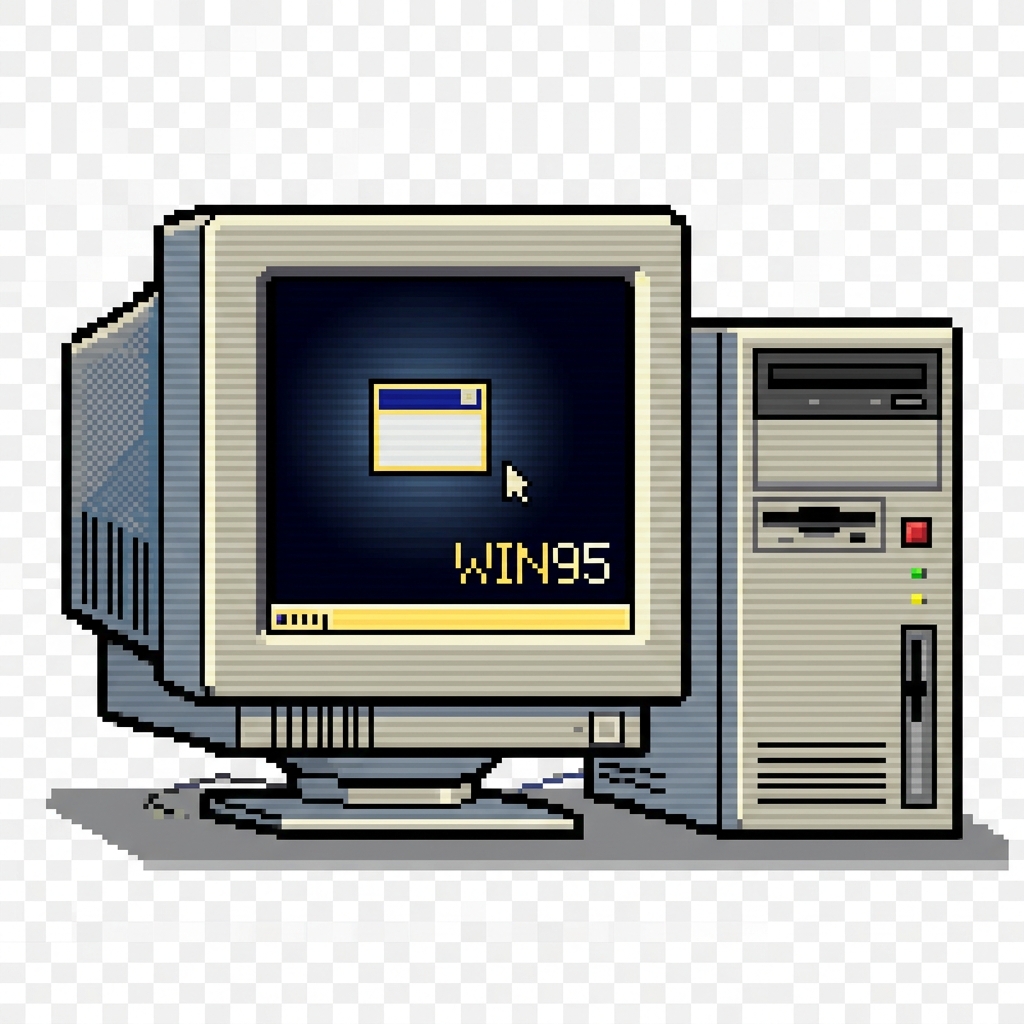
- My Computer: Represents the computer's file system and drives.
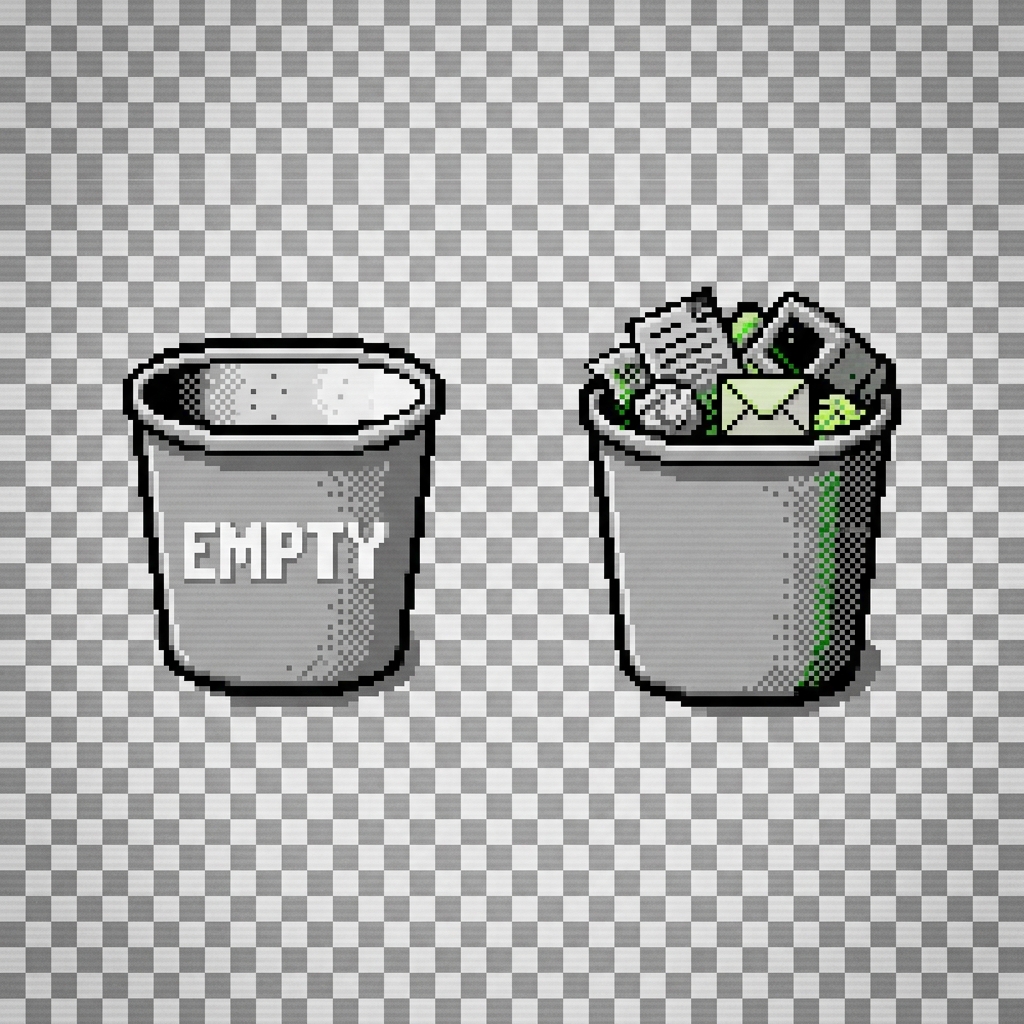
- Recycle Bin: Represents the place where deleted files are stored.
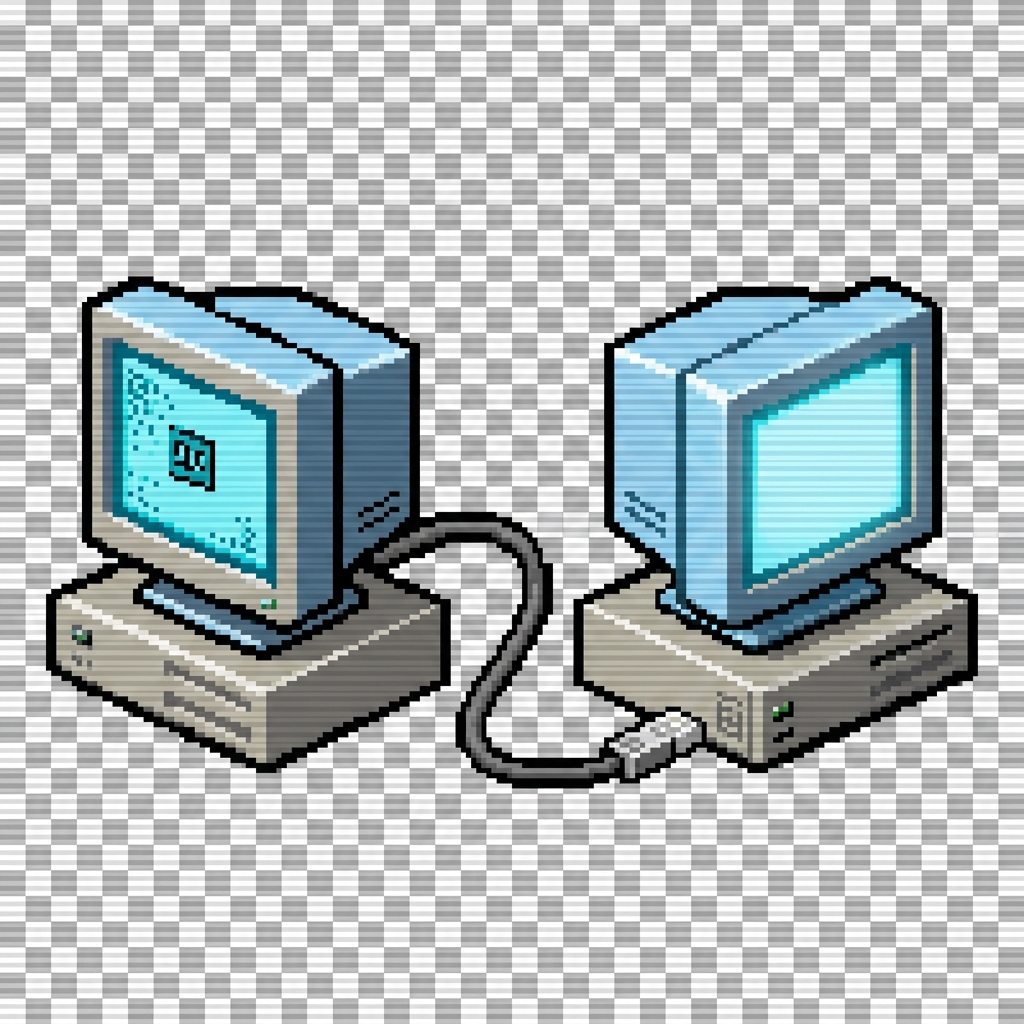
- Network Neighborhood: Represents the connected computers on a local network.
- Internet Explorer: Represents the classic web browser.

- Folder: Represents a directory for storing files.
- Document: Represents a text document or file.
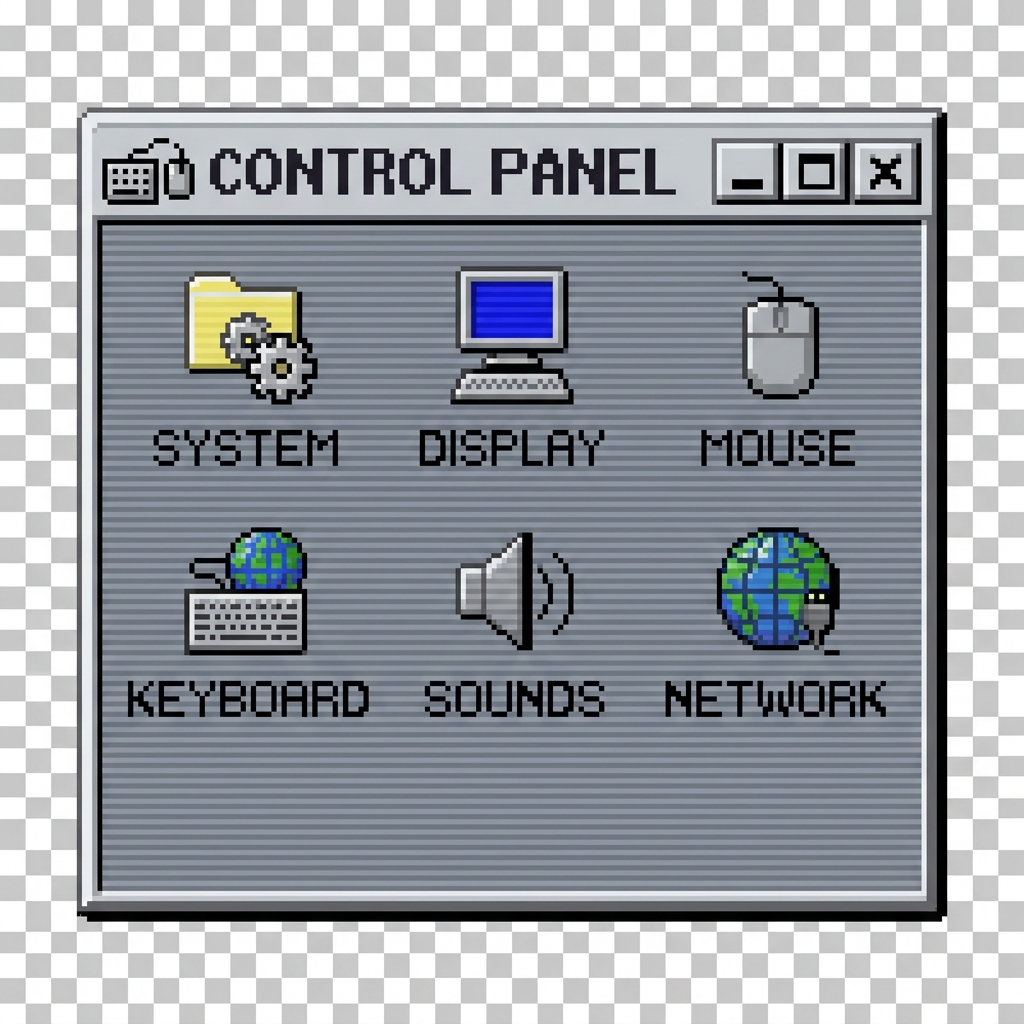
- Control Panel: Represents the system settings and configuration options.
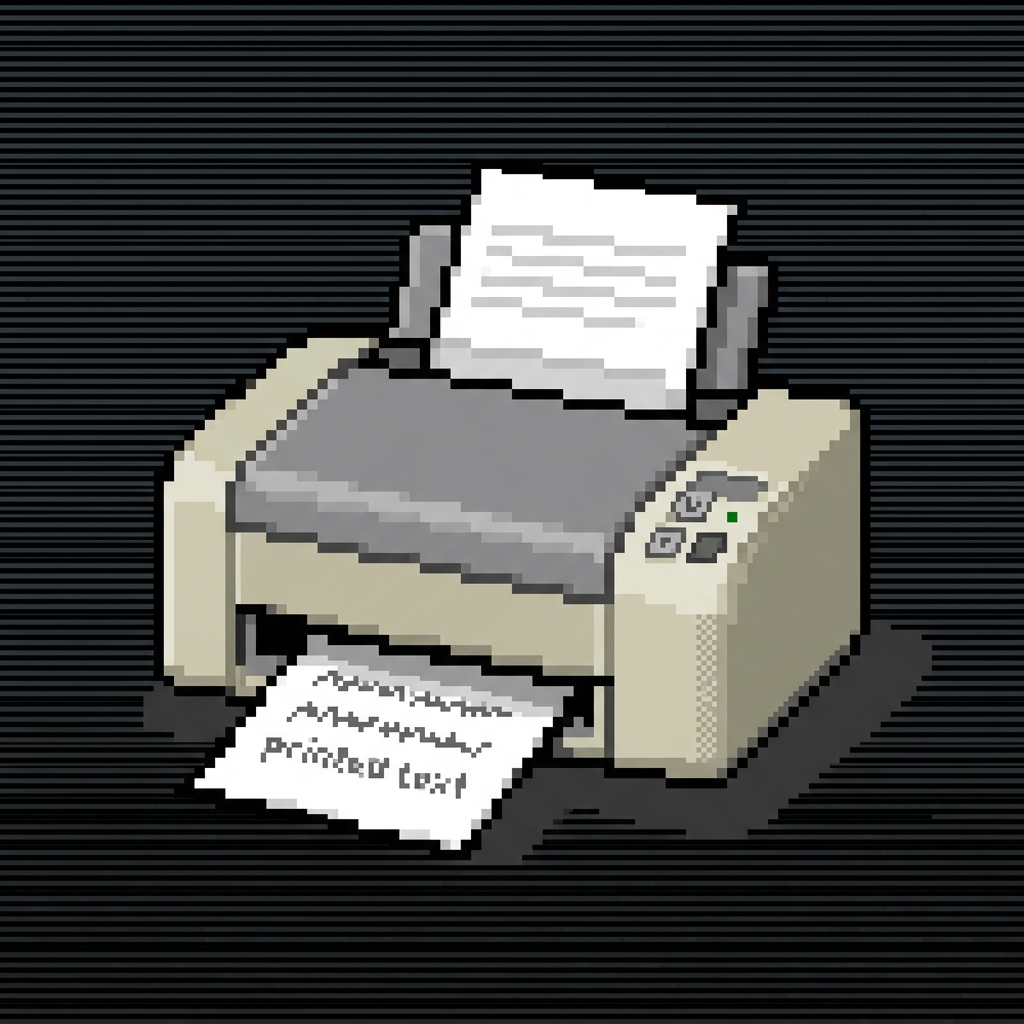
- Printer: Represents a connected printer.
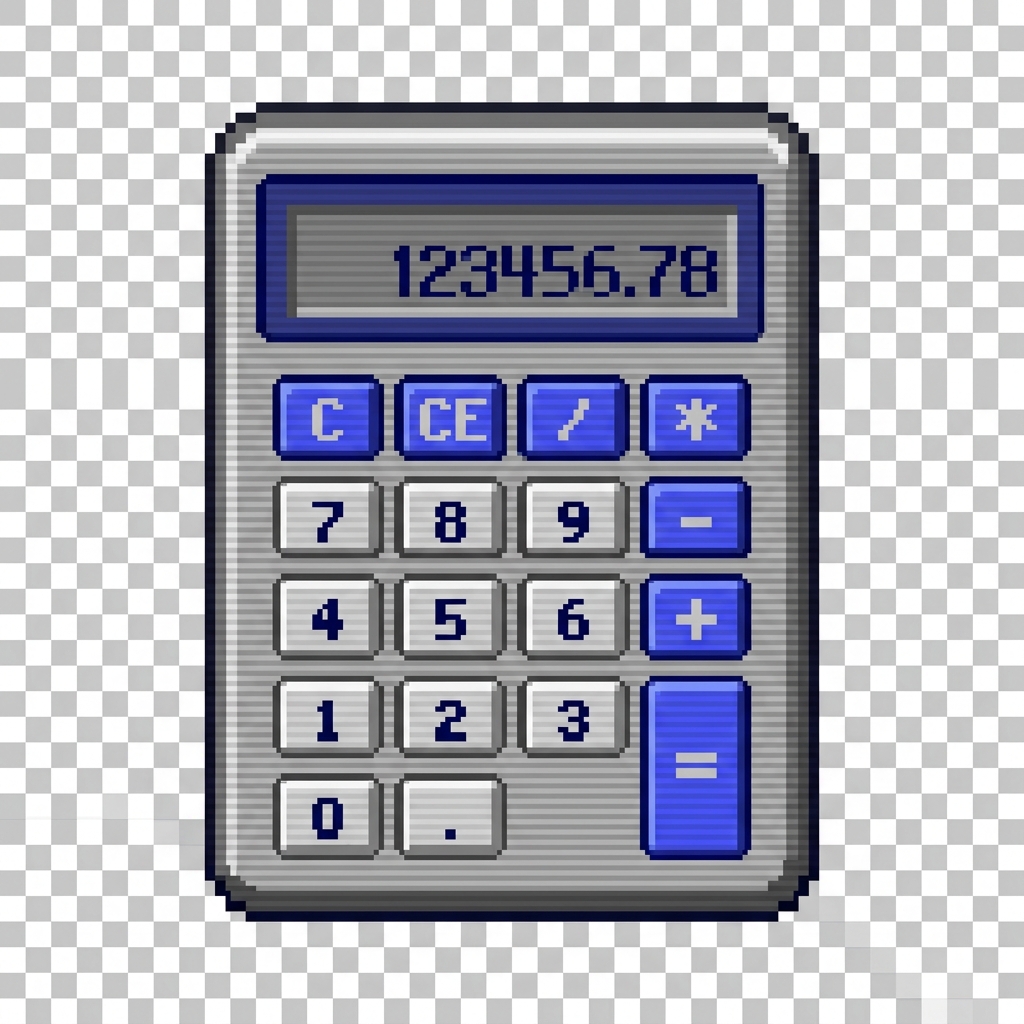
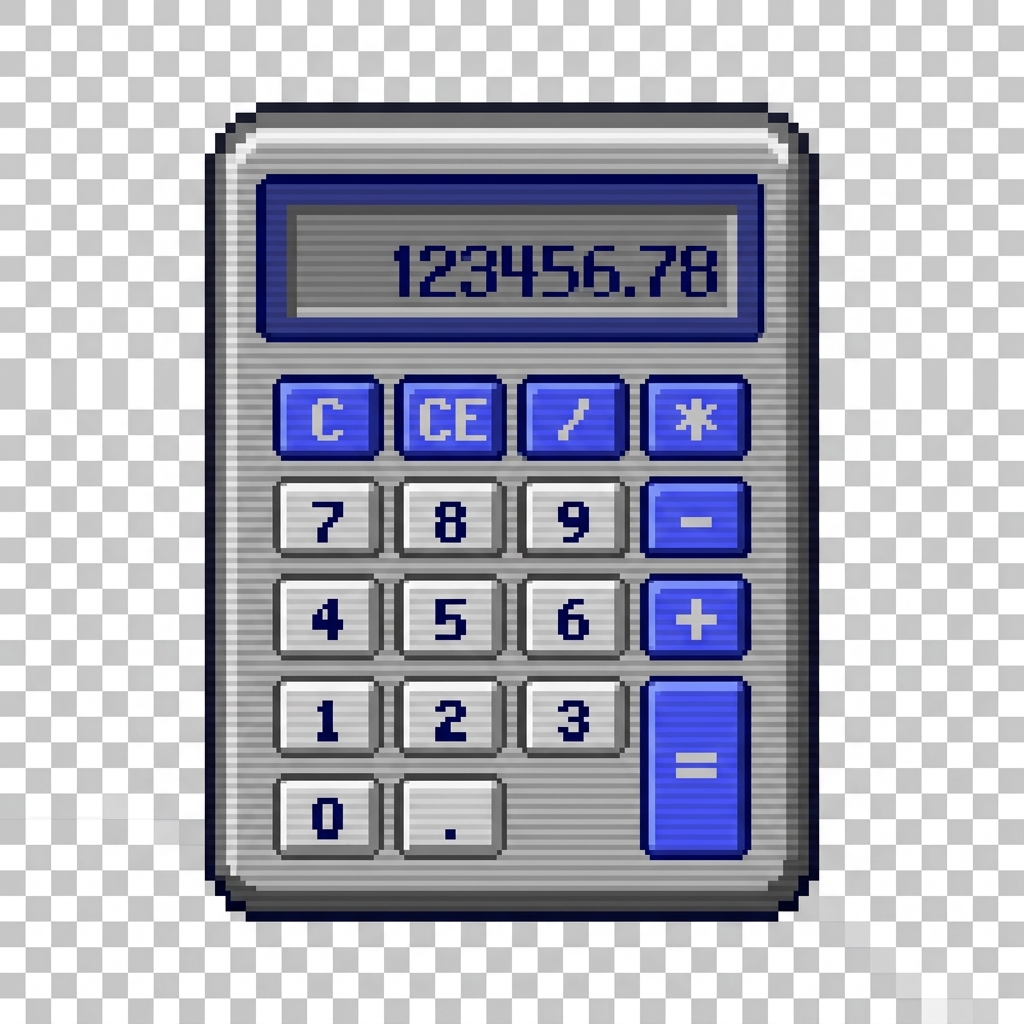
- Calculator: Represents a calculator application.
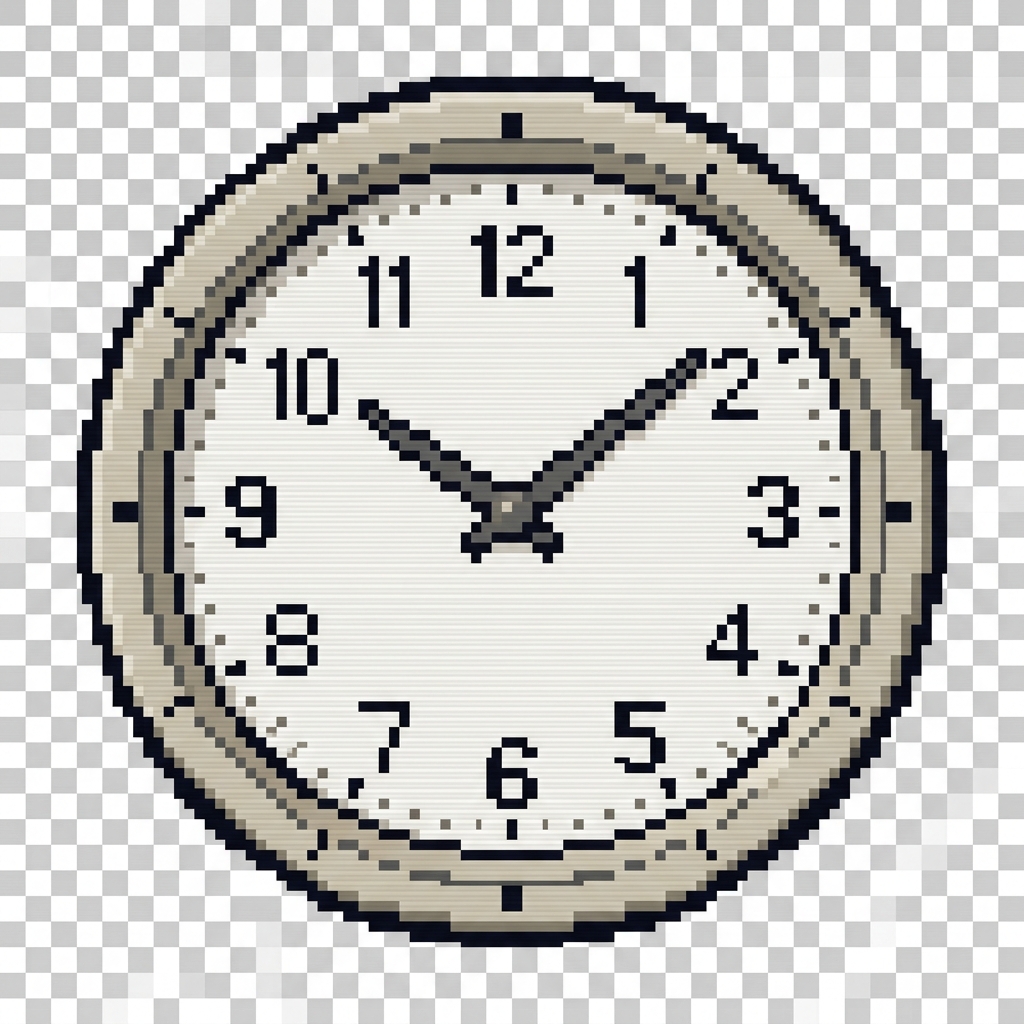
- Clock: Represents the system clock and time settings.
- Help: Represents the system help files.

- Find Files: Represents the file search utility.

Prompt
Generation Prompts
- System Model: Gemini 2.0 Flash
- Image Model: Imagen 3 / Gemini 3.1 Flash Image
Pack Prompt
You are an expert icon designer and creative director. Your task is to conceptualize a cohesive icon pack based on the theme: Retro Windows 95 System Icons.
The pack should contain 12 distinct icons that would be useful for web design, app interfaces, or OS customization.
Return a JSON object with:
- "title": A catchy name for the icon pack.
- "slug": A kebab-case slug for the pack.
- "description": A 2-3 sentence description of the pack's style and use case.
- "introduction": A short introductory text for the pack's documentation.
- "metadata": { "style": "The overall visual style (e.g., Glassmorphism, Pixel Art)", "keywords": ["list", "of", "5", "keywords"] }
- "icons": A list of 12 objects, each with:
- "name": Name of the icon (e.g., "Home", "Settings", "User").
- "concept": A brief description of what the icon represents.
- "image_prompt": A highly detailed, professional prompt for an image generation model to create a single, high-quality icon. The prompt should specify a transparent or solid background (e.g., "on a solid white background"), centered composition, and consistent style.
- "caption": A short notification caption (e.g., "A set of 12 glassmorphic web icons for modern UI.")
Ensure the "image_prompt" for each icon is consistent with the overall style.
Individual Icon Prompts
My Computer
Create a pixel art icon of a desktop computer with a monitor and tower, rendered in the style of Windows 95 icons. Use a limited color palette of grays, blues, and yellows. The icon should be centered on a transparent background, with visible scanlines to enhance the retro feel. Ensure perfect pixel alignment for a crisp, nostalgic look.
Recycle Bin
Create a pixel art icon of a recycle bin, both empty and full, rendered in the style of Windows 95 icons. Use a limited color palette of grays and greens. The icon should be centered on a transparent background, with visible scanlines to enhance the retro feel. Ensure perfect pixel alignment for a crisp, nostalgic look. Show it empty and full.
Network Neighborhood
Create a pixel art icon representing networked computers, rendered in the style of Windows 95 icons. Depict two computers connected by a cable. Use a limited color palette of grays, blues, and greens. The icon should be centered on a transparent background, with visible scanlines to enhance the retro feel. Ensure perfect pixel alignment for a crisp, nostalgic look.
Internet Explorer
Create a pixel art icon of the Internet Explorer 'e' logo, rendered in the style of Windows 95 icons. Use a limited color palette of blues and yellows. The icon should be centered on a transparent background, with visible scanlines to enhance the retro feel. Ensure perfect pixel alignment for a crisp, nostalgic look.
Folder
Create a pixel art icon of a folder, rendered in the style of Windows 95 icons. Use a limited color palette of yellows and grays. The icon should be centered on a transparent background, with visible scanlines to enhance the retro feel. Ensure perfect pixel alignment for a crisp, nostalgic look.
Document
Create a pixel art icon of a document with a folded corner, rendered in the style of Windows 95 icons. Use a limited color palette of whites and grays. The icon should be centered on a transparent background, with visible scanlines to enhance the retro feel. Ensure perfect pixel alignment for a crisp, nostalgic look.
Control Panel
Create a pixel art icon of a control panel window, rendered in the style of Windows 95 icons. Use a limited color palette of grays and blues. The icon should be centered on a transparent background, with visible scanlines to enhance the retro feel. Ensure perfect pixel alignment for a crisp, nostalgic look.
Printer
Create a pixel art icon of a printer, rendered in the style of Windows 95 icons. Use a limited color palette of grays and beiges. The icon should be centered on a transparent background, with visible scanlines to enhance the retro feel. Ensure perfect pixel alignment for a crisp, nostalgic look.
Calculator
Create a pixel art icon of a calculator, rendered in the style of Windows 95 icons. Use a limited color palette of grays and blues. The icon should be centered on a transparent background, with visible scanlines to enhance the retro feel. Ensure perfect pixel alignment for a crisp, nostalgic look.
Clock
Create a pixel art icon of a clock, rendered in the style of Windows 95 icons. Use a limited color palette of grays and beiges. The icon should be centered on a transparent background, with visible scanlines to enhance the retro feel. Ensure perfect pixel alignment for a crisp, nostalgic look.
Help
Create a pixel art icon of a question mark inside a speech bubble, rendered in the style of Windows 95 icons. Use a limited color palette of blues and whites. The icon should be centered on a transparent background, with visible scanlines to enhance the retro feel. Ensure perfect pixel alignment for a crisp, nostalgic look.
Find Files
Create a pixel art icon of a magnifying glass over a document, rendered in the style of Windows 95 icons. Use a limited color palette of grays and yellows. The icon should be centered on a transparent background, with visible scanlines to enhance the retro feel. Ensure perfect pixel alignment for a crisp, nostalgic look.
More from Icon Packs